

How to Fix a Liquid Damaged Laptop Keyboard

Table of Contents
Immediate Steps to Take After a Liquid Spill
How to Dry Out a Laptop Keyboard the Right WayWhat Drying Actually Does (and Does Not Do)The Drying Process: Step by StepWhat Not to Use: Hair Dryers and Heat Sources
What Drying Actually Does (and Does Not Do)
The Drying Process: Step by Step
What Not to Use: Hair Dryers and Heat Sources
Assess the Liquid: Water vs. Sugary or Sticky DrinksWhy Sugary and Acidic Drinks Are Far Worse Than WaterThe Practical Test: How to Tell What You Are Dealing WithWhy Drying Alone Is Never Enough for These Liquids
Why Sugary and Acidic Drinks Are Far Worse Than Water
The Practical Test: How to Tell What You Are Dealing With
Why Drying Alone Is Never Enough for These Liquids
Open the Chassis and Clean the Keyboard and PCBMembrane vs. Mechanical Keyboards: Why It MattersCleaning with Isopropyl Alcohol and Distilled Water
Membrane vs. Mechanical Keyboards: Why It Matters
Cleaning with Isopropyl Alcohol and Distilled Water
Corrosion Prevention: What to Do After the Keyboard Is Dry
Signs of Permanent Damage and When to Seek Professional HelpData Recovery vs. Hardware Repair: Know the Difference
Data Recovery vs. Hardware Repair: Know the Difference
Laptop Keyboard Replacement Cost: Repair or Replace?
When You Need a Laptop Water Damage Repair Service
Frequently Asked Questions
Last Updated: September 8, 2026
Immediate Steps to Take After a Liquid Spill
A liquid damaged laptop keyboard can go from a minor accident to a dead motherboard in seconds. The difference between a quick fix and a costly repair comes down to how fast you act in the first minute after the spill. This guide from PHONEPROBS walks through exactly what to do, what to avoid, and when to hand the job to a professional.
The very first move is to power off the laptop and unplug it immediately. Do not wait to save your work, do not click through shutdown prompts, and do not try to wipe the keys first. Every second the laptop stays on, electrical current flows through the liquid, which creates the short circuit that destroys internal components.
Step 1: Power Off and Unplug Right Away
Press and hold the power button for five to ten seconds to force a hard shutdown.
Unplug the AC adapter from the wall and from the laptop.
If the battery is removable, take it out. Many modern laptops have sealed batteries, so skip this if you cannot remove it easily without tools.
Step 2: Remove Peripherals and External Devices Unplug the mouse, USB drives, headphones, and any docking station. Then disconnect the charger completely. These devices carry electrical current into the chassis and can worsen the short circuit. Flip the laptop upside down into a V shape so the keyboard faces downward at an angle, which lets gravity pull the liquid out of the key wells.
Watch Out Do not press any keys while the laptop is still wet. Pressing keys pushes liquid deeper into the keyboard membrane and toward the PCB below.
How to Dry Out a Laptop Keyboard the Right Way
Drying a liquid damaged laptop keyboard is a waiting game, but patience here saves you from a motherboard replacement later. The goal is to remove all moisture from the internal components before corrosion begins. However, drying alone is only half the battle, and for many spills, it is not even the most important half.
What Drying Actually Does (and Does Not Do)
Drying removes liquid water from the surfaces it can reach. It does not remove dissolved minerals, sugars, or acids that remain behind as the water evaporates. Those residues are what cause corrosion weeks later. This is why the most thorough repair guides, and professional repair technicians, do not stop at drying. They follow up with an isopropyl alcohol rinse to displace any remaining moisture and dissolve the residue before it can oxidize the metal contacts.
Isopropyl alcohol (90% or higher) is chemically miscible with water, meaning it mixes with it (pubchem.ncbi.nlm.nih.gov). When you apply alcohol to a wet or recently dried PCB, it displaces the water, carries away dissolved contaminants, and then evaporates completely without leaving conductive residue. This is the single most effective corrosion-prevention step you can take after a spill, and most online guides never mention it.
The Drying Process: Step by Step
Phase 1: Passive Drying (First 24-48 Hours)
Leave the laptop open, upside down, in a dry room with good airflow. Place it on a towel with the keyboard facing down at an angle so gravity pulls liquid out of the key wells. Position a fan nearby to circulate air across the keys. Do not seal the laptop in a bag with rice, rice does not actively pull moisture from sealed electronics, and the dust can get into the keyboard mechanism.
Phase 2: Active Residue Removal (After 24 Hours, Before Powering On)
Once the visible moisture is gone, open the chassis (see the section below) and apply isopropyl alcohol to the keyboard membrane and PCB contacts. Use a soft brush or lint-free cloth dampened with alcohol, never pour it directly. This step dissolves the sugar, acid, and salt residue that drying alone leaves behind.
Phase 3: Final Drying (12-24 Hours After Alcohol Treatment)
After the alcohol treatment, allow the components to air dry completely. Alcohol evaporates quickly, but any remaining moisture trapped under the membrane needs time to escape. Plan on a full 72 hours from the moment of the spill before you consider powering the laptop back on.
What Not to Use: Hair Dryers and Heat Sources
Never use a hair dryer, heat gun, or microwave to dry a laptop keyboard. Heat warps the plastic key caps, melts the keyboard membrane, and can damage the ribbon cable that connects the keyboard to the motherboard. Heat also accelerates oxidation on the metal contacts of the PCB, which speeds up corrosion rather than preventing it.
Key Takeaway Drying removes water. Isopropyl alcohol removes the residue that water leaves behind. For any spill other than clean water, both steps are required to prevent corrosion.
Assess the Liquid: Water vs. Sugary or Sticky Drinks
Not all spills are equal, and the difference is not just about stickiness, it is about chemistry. Plain water is the best-case scenario because it evaporates cleanly and leaves no conductive or corrosive residue. But the moment you spill soda, coffee with cream, beer, wine, or juice, you are introducing three specific threats that water alone does not carry: sugars, acids, and ionic salts.
Why Sugary and Acidic Drinks Are Far Worse Than Water
Sugary drinks leave a residue that does two things: it remains slightly conductive even after drying, and it acts as a glue that traps dust and moisture against the keyboard membrane and PCB traces. That conductive film is what causes ghost keystrokes or unresponsive keys days after the laptop looks dry.
Acidic drinks, coffee, citrus juices, wine, and many sodas, add a second problem. The acid accelerates oxidation of the bare copper or tin contacts on the keyboard's printed circuit. Unlike water, which evaporates and leaves the metal relatively untouched, acid begins etching the metal surface within hours. This is why a coffee spill can cause intermittent key failures two weeks later even if the laptop worked fine immediately after drying.
Salty drinks (sports drinks, salted cocktails) are the worst of all. Salt is hygroscopic, it pulls moisture out of the air, and it is highly conductive (britannica.com). A salt residue on a keyboard membrane can keep a circuit partially energized, which leads to erratic behavior and faster corrosion than any other common spill.
The Practical Test: How to Tell What You Are Dealing With
If you are unsure what was spilled, look for the evidence after the keyboard has dried:
White or chalky film on the key caps or around the key wells suggests mineral or salt residue.
Sticky or tacky feel when you press a key indicates sugar residue.
Discoloration or dark spots on the key caps or chassis suggests acidic liquid (coffee, wine, citrus).
Why Drying Alone Is Never Enough for These Liquids
Drying removes the water, but it leaves the sugar, acid, and salt behind. Those residues continue to conduct electricity and corrode metal contacts long after the laptop appears dry. This is why the standard advice to "wait 48 hours and test it" fails for sticky spills. The laptop may power on, but the residue is still active underneath the keys.
For any spill other than clean water, you must physically remove the residue. That means opening the chassis and cleaning the keyboard membrane and PCB with isopropyl alcohol, not just waiting for evaporation. The next section covers exactly how to do that without causing additional damage.
Watch Out If you spilled a sugary or acidic drink, do not power the laptop on after drying alone. The residue will still be conductive and can short the keyboard matrix or the motherboard traces when current flows.
Open the Chassis and Clean the Keyboard and PCB
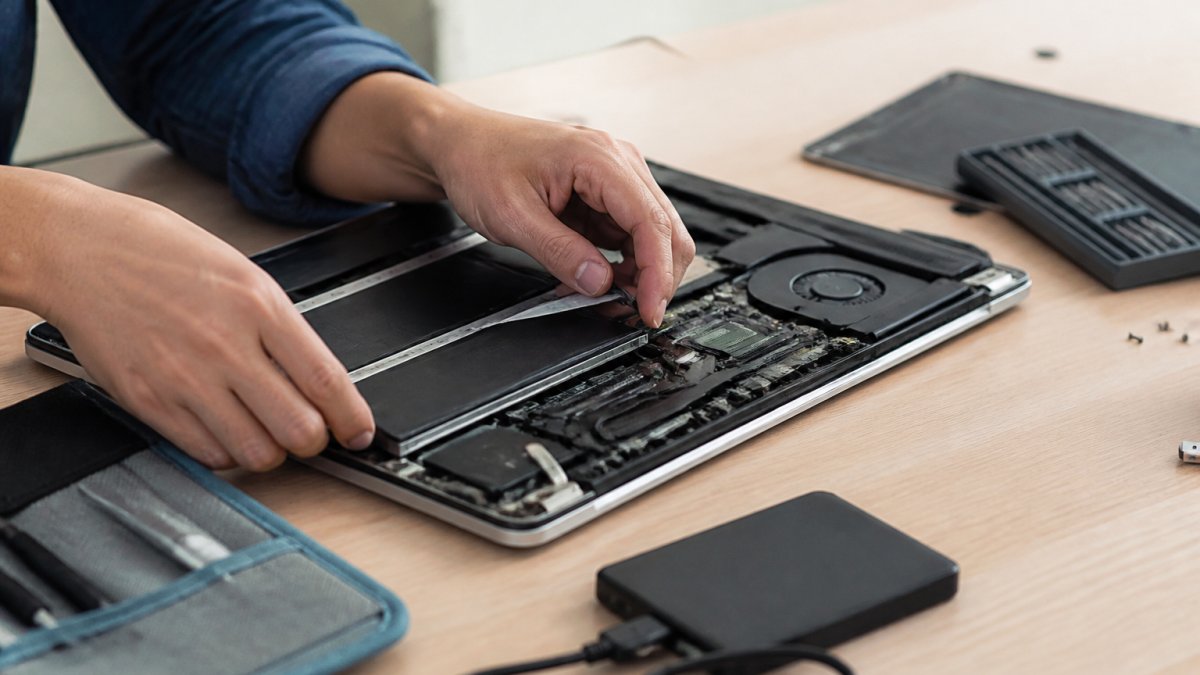
If the spill was sticky, or if you want to prevent long-term corrosion, opening the chassis is the right move. This is the step that separates a thorough fix from a temporary one. A liquid damaged laptop keyboard often survives the initial spill but fails weeks later due to corrosion that was never cleaned.
Before opening, disconnect the battery internally if you can reach it. This prevents static discharge and eliminates any risk of electrical current flowing while you work.
Membrane vs. Mechanical Keyboards: Why It Matters
Laptop keyboards come in two main types, and the cleaning method differs for each. Most thin laptops use membrane keyboards, where the keys sit on a single rubber or silicone sheet with printed circuits underneath. These are difficult to clean effectively because the membrane is sealed. If a sugary drink soaked through, membrane keyboards often need full replacement rather than cleaning.
Mechanical keyboards, found on some gaming laptops, have individual switches beneath each key cap. These are more repairable. You can remove the key caps, clean the switches individually, and replace only the damaged switches rather than the entire keyboard.
Cleaning with Isopropyl Alcohol and Distilled Water
For residue removal, use 90% or higher isopropyl alcohol applied to a soft cloth or cotton swab. Isopropyl alcohol evaporates quickly, does not conduct electricity, and dissolves sugary residue without leaving water spots. Never pour alcohol directly onto the keyboard. Apply it to a cloth or swab first, then gently wipe the affected areas.
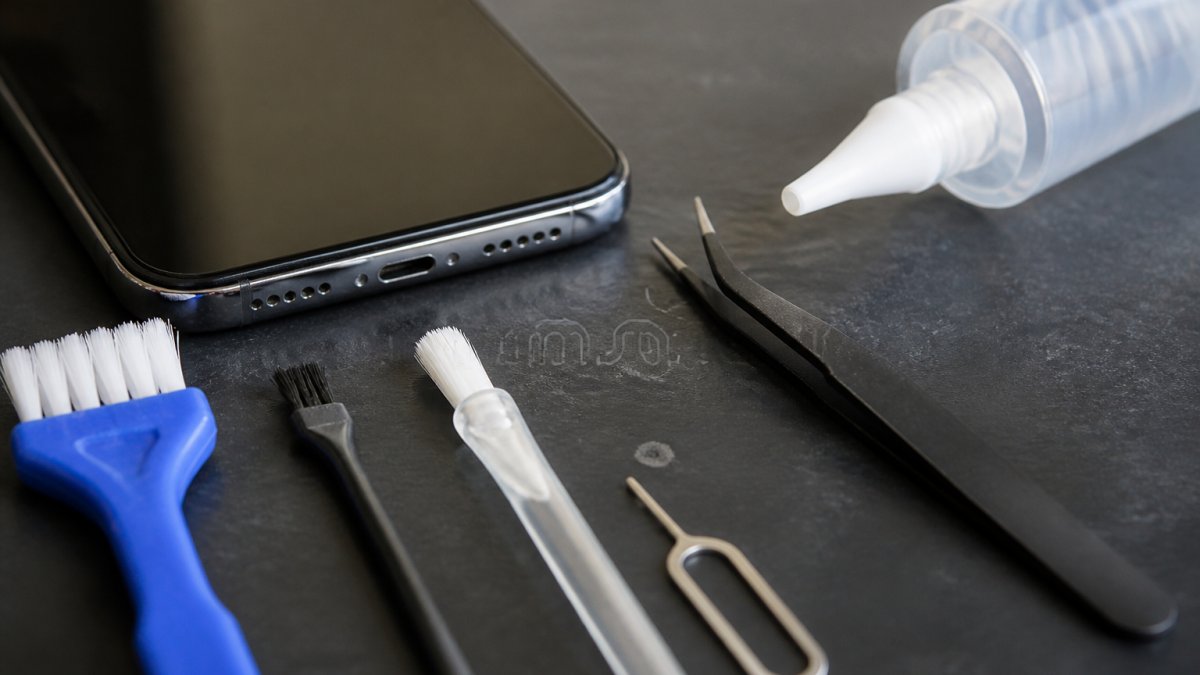
For the PCB and internal contacts, a soft brush (like an anti-static brush or clean paintbrush) dipped in isopropyl alcohol works well. If you need to rinse a component, distilled water is safe because it lacks the minerals that cause corrosion, but you must allow it to dry completely afterward.

Pro Tip Use distilled water only for rinsing, never tap water. Tap water contains minerals that leave conductive deposits on the PCB and accelerate corrosion (the NIH).
Corrosion Prevention: What to Do After the Keyboard Is Dry
Drying the keyboard stops the immediate damage, but corrosion is the long-term killer. Oxidation begins when moisture contacts the metal traces on the PCB, and it continues even after the surface looks dry. Corrosion prevention means treating the internal components, not just waiting for evaporation.
After the keyboard and PCB are fully dry, inspect the metal contacts and solder points for any white or green powdery buildup. This is oxidation. Clean it gently with isopropyl alcohol and a soft brush. For stubborn corrosion, a contact cleaner spray designed for electronics can help, but use it sparingly and allow it to dry fully.
A common mistake is skipping this step entirely. The laptop works fine for two weeks, then keys start failing or the system randomly shuts down. That is corrosion reaching critical mass on the motherboard traces.
Signs of Permanent Damage and When to Seek Professional Help
Some damage is beyond what a careful DIY fix can address. If you see any of these signs after the drying period, stop troubleshooting and seek professional repair:
Keys that do not respond at all, even after cleaning
Ghost keystrokes where the laptop types letters you did not press
The laptop will not power on or shuts down randomly
Visible corrosion or discoloration on the PCB
A burning smell when the laptop is powered on
Data Recovery vs. Hardware Repair: Know the Difference
A liquid damaged laptop keyboard is a hardware problem, but it can become a data problem if the motherboard fails. If the laptop will not power on and you have important files, the priority shifts from repairing the keyboard to recovering the data. These are two separate services with different outcomes.
Hardware repair restores the laptop to working condition. Data recovery extracts your files from the storage drive, which may require removing the drive and reading it in another machine. If the liquid reached the motherboard and caused a short circuit, the storage drive may be unaffected, but you need the right equipment to access it.
Laptop Keyboard Replacement Cost: Repair or Replace?
When cleaning does not restore function, replacement is the next option. The laptop keyboard replacement cost varies widely depending on the laptop model and whether you do it yourself or hire a professional. Membrane keyboards for common laptop models are relatively inexpensive parts, but the labor and the risk of damaging ribbon cables during installation add to the total.
Before deciding, consider the laptop's age and value. If the laptop is older and the keyboard replacement approaches half its resale value, replacement of the whole machine may make more sense. If the laptop is newer or has other valuable components, replacing the keyboard is worth the investment.
When You Need a Laptop Water Damage Repair Service
DIY repair works for minor spills caught quickly. For major spills, sticky liquids that reached the motherboard, or any sign of corrosion, a professional laptop water damage repair service is the safer choice. What looks like a simple keyboard issue can hide damage to the motherboard, battery connector, or storage drive.
At PHONEPROBS, our team is dedicated to resolving your technical problems quickly and effectively. We also offer quick repair quotes so you know the cost before any work begins.
If your laptop is not powering on or you are seeing hardware failure signs, bring it in for a professional assessment. We repair phones, consoles, computers, and laptops, and we specialize in water damage repair. Stop by today for a professional quote and let us handle your device needs with expertise. BOOK YOUR REPAIR
Frequently Asked Questions
Can a keyboard recover from water damage?
Yes, a keyboard can recover from water damage if you act fast. Power off the laptop, unplug it, and disconnect the battery within the first minute. Then dry the keyboard face-down for 24 to 48 hours. Plain water has a good chance of recovery if cleaned properly. Sugary or sticky liquids like soda cause residue and corrosion, which makes recovery harder. For a liquid damaged laptop keyboard, the key is speed and proper drying, not heat.
How much does it cost to fix a laptop keyboard with water damage?
The cost to fix a laptop keyboard with water damage depends on your laptop model and whether the damage spread to the motherboard. Before replacing the keyboard, confirm the issue is isolated to the keyboard and not the main board, since that changes the repair path.
Is it safe to use a hair dryer on a wet laptop keyboard?
No. A hair dryer pushes heat that can warp keycaps, melt the keyboard membrane, and damage nearby ribbon cables and plastic components. Heat also drives moisture deeper into the chassis where it can cause corrosion. Instead, use a dry, lint-free cloth to blot visible liquid, then let the laptop air dry face-down for 24 to 48 hours. Silica gel packets speed up moisture absorption safely.
BOOK YOUR REPAIR
Comments