

DIY Phone Screen Repair: Common Mistakes to Avoid

Table of Contents
Common Phone Screen Problems Before You Start
Phone Screen Replacement Mistakes That Cost You
Applying Heat Incorrectly
Rushing the Screen Separation
Damaging the Display Cable
Glass-Only Phone Screen Repair Risks You Should Know
What to Do After a Phone Screen Replacement
Testing Power and Touch Response
Checking for Bubbles and Lifted Edges
Verifying Water Resistance
DIY Repair vs. Professional Repair: When to Call a Pro
Frequently Asked Questions
Last Updated: October 4, 2026
Common Phone Screen Problems Before You Start
Before you attempt a DIY phone screen repair, understand what you're dealing with. Knowing the difference between a cracked display, a shattered touchscreen, and internal panel damage determines whether a DIY fix makes sense.
A cracked glass layer looks bad but the phone often still works. A shattered touchscreen compromises touch response. The worst scenario is internal display panel damage (LCD or OLED), showing black spots, dead pixels, or sections that don't light up.
Water damage adds complexity. Attempting screen replacement without addressing moisture can trap humidity inside during reassembly, causing failure days later.
Common phone screen problems include:
Cracked glass with intact touch response
Shattered glass affecting touchscreen sensitivity
Dark spots or dead pixels on the display
Flickering or lines across the screen
Water damage combined with screen cracks
Lifted screen edges from impact damage
Before starting, assess the damage honestly. Minor cracks with no touch issues may work for DIY repair. Severe shattering or recent water exposure requires professional repair.
Phone Screen Replacement Mistakes That Cost You
Success in DIY phone screen repair depends on technique. Most failures result from critical mistakes that damage internal components. Understanding these mistakes prevents wasted time and money.

Applying Heat Incorrectly
Heat softens the adhesive, but excessive heat damages the fragile LCD or OLED layer underneath the glass, creating new problems.
Blasting the screen with a hair dryer is a mistake. Use gentle, sustained heat to warm adhesive to 80-90 degrees, not to make the screen too hot to touch.
Heat application best practices:
Use low to medium heat setting only
Keep the heat source 4-6 inches away from the screen
Move the heat gun in circular motions, don't focus on one spot
Apply heat for 2-3 minutes total, not all at once
Test the adhesive by gently trying to lift the corner with a plastic tool
If it doesn't budge after 3 minutes, apply more heat
Rushing the Screen Separation
Once warm, resist the urge to rip the screen off quickly. The display cable is fragile, pulling too hard tears it, leaving you with two problems instead of one.
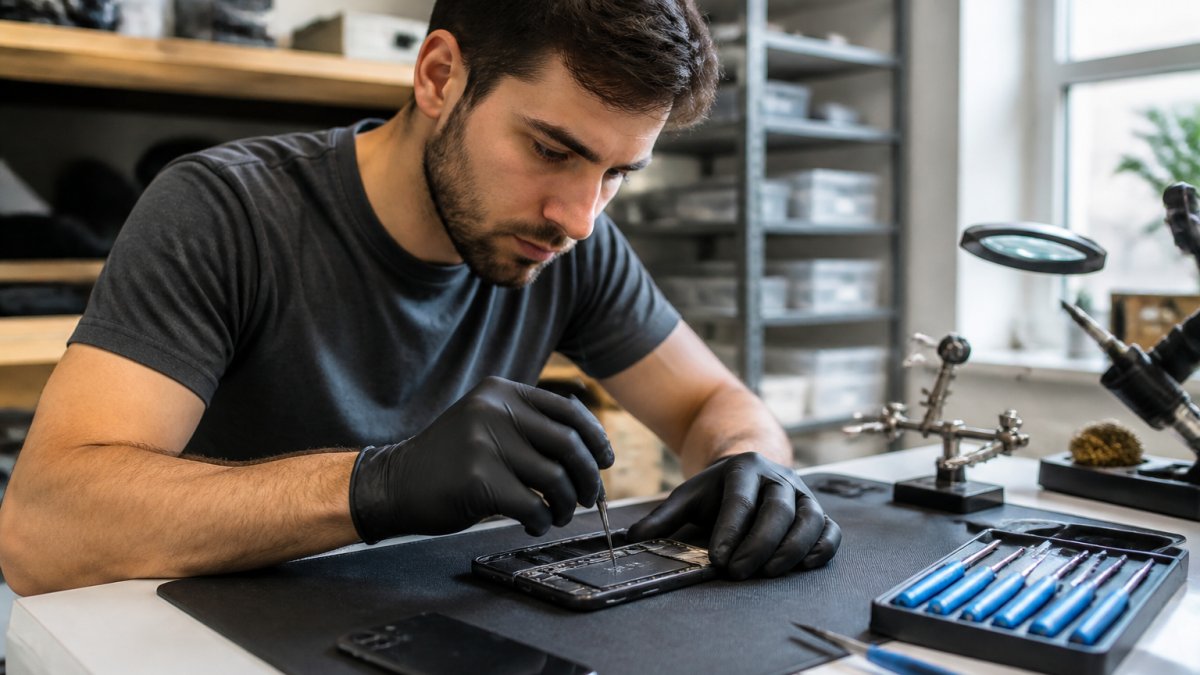
Screen separation should take 5-10 minutes (I Separated the LCD from the digitizer! - iPhone 4). Use a plastic tool and work slowly around all edges, lifting gradually to break the adhesive bond.
The screen will come free. It just needs time and gentle pressure. If you're meeting significant resistance, apply more heat and wait longer.
Damaging the Display Cable
The display cable is the thin ribbon connecting your screen to the logic board. Pull the screen too far before disconnecting it, and you tear the cable, resulting in a black screen.
Before fully removing the screen, locate the display cable connection (usually near the bottom). Flip the retention clip gently and slide the cable out.
Forgetting this step causes the cable to tear when pulling the screen, requiring both a new screen and display cable, costing significantly more.
Glass-Only Phone Screen Repair Risks You Should Know
Many DIY phone screen repair guides focus on replacing just the glass layer. This is tempting because glass-only replacement kits are cheaper than full screen assemblies. But this approach carries real risks that most guides don't explain clearly.
ECDiy
Modern phone screens are fused together. The glass, the LCD or OLED panel, and the touch layer are bonded so tightly that separating just the glass is nearly impossible without damaging what's underneath. When you heat a phone screen and try to peel away just the glass, you're often damaging the display layer in the process. You end up replacing the glass and then discovering the display doesn't work properly.
The adhesive used to bond these layers is incredibly strong. Using excessive heat to separate just the glass will damage the display panel underneath. You'll get a new glass layer but a broken display, which means you've wasted money and time.
Glass-only repair risks:
Damaging the LCD or OLED panel while removing glass
Creating bubbles or separation between new glass and display
Reduced touch sensitivity after reassembly
Water entering through gaps between glass and display
Display not powering on after glass replacement
A full screen assembly replacement is almost always the better choice for DIY work. It costs more upfront but succeeds more often. You're replacing the entire unit as one piece, which is how it was designed to come apart.
What to Do After a Phone Screen Replacement
Finishing the repair is only half the battle. What you do in the first 24-48 hours after reassembly determines whether your phone works properly long-term. Many DIY repairs fail not during the replacement, but during the testing and setup phase.
Testing Power and Touch Response
Before you consider the job done, test everything. Power on the phone and verify the display comes on. If the screen stays black, you likely have a display cable issue or the cable wasn't fully seated. Check the cable connection again. If the screen powers on but the image looks wrong (lines, discoloration, flickering), the display panel was damaged during removal.
Test the touch response by opening an app and tapping different areas of the screen. The phone should respond to your touches across the entire display. Dead zones or areas where the touch doesn't register mean the touchscreen layer was damaged or the cable connection is loose.
Post-repair power and touch testing:
Power on the phone and wait 30 seconds for the display to fully activate
Check for lines, dark spots, or discoloration on the screen
Test touch response by opening Settings and tapping different areas
Verify that all screen corners and edges respond to touch
Test with multiple apps to ensure consistent responsiveness
If there are issues, power off and check the display cable connection
If the screen powers on but touch doesn't work, the problem is usually the display cable. Power off the phone, disconnect the battery if possible, reseat the display cable, and try again.
Checking for Bubbles and Lifted Edges
After reassembly, inspect the edges of the screen carefully. Bubbles under the glass or lifted edges mean the adhesive didn't bond properly. This is a cosmetic issue if small, but larger bubbles can trap dust and water. Lifted edges create gaps where moisture can enter.
Bubbles usually form because dust got trapped under the screen during reassembly. A small amount of dust under the glass is nearly impossible to avoid. If you see bubbles, you have two options: accept them and monitor the phone, or disassemble again and clean the surfaces.
Lifted edges are more serious. If the screen isn't bonded around the entire perimeter, water can seep in. This is especially important if your phone might be exposed to moisture.
Screen adhesion checks:
Inspect all four edges with good lighting
Look for gaps between the screen and phone body
Check for bubbles or cloudy areas under the glass
Small bubbles (smaller than a pencil eraser) are usually acceptable
Large bubbles or lifted edges require reassembly and cleaning
If the edges are lifted, you can try applying pressure around the perimeter and letting the adhesive cure for 24 hours. If bubbles are large, disassemble and clean both surfaces thoroughly before reassembling.
Verifying Water Resistance
Your phone's water resistance depends on proper sealing. After a screen replacement, that seal is compromised. Even if the screen is bonded well, the phone is no longer as water-resistant as it was originally.
Avoid exposing your phone to water for at least 48 hours after reassembly. The adhesive needs time to fully cure. Even then, the phone is more vulnerable to water damage than it was before the repair. Don't take it to the beach, don't use it in the rain, and don't splash water on it.
If your phone was originally water-resistant and you want to restore that protection, you'll need to apply a waterproof sealant around the screen edges. This is an advanced step that most DIY repairs skip.
Water resistance after DIY repair:
Avoid water exposure for 48 hours while adhesive cures
Don't take the phone to wet environments for 1 week
Don't splash water on the screen even after curing
Consider applying waterproof sealant for long-term protection
Be aware that water resistance is reduced compared to factory condition
The safest approach is to treat your phone as less water-resistant after a DIY screen replacement. This protects your investment and prevents future damage.
DIY Repair vs. Professional Repair: When to Call a Pro
DIY phone screen repair works in some situations but not others. Knowing when to attempt the repair yourself and when to get professional help is critical.
DIY repair makes sense if you have a straightforward cracked glass issue with no water damage, you have the right tools, and you're comfortable with detailed work.
Professional repair costs more upfront. But a failed DIY repair often costs even more. If you damage the display cable, the display panel, or the battery during removal, you're now paying for multiple components instead of just the screen.
Repair Type | Best For | Risk Level | Time Required |
DIY replacement | Simple cracked glass, no water damage | Medium to High | 1-3 hours |
Professional repair | Water damage, severe cracks, internal damage | Low | 30 minutes to 2 hours |
Glass-only DIY | Minor cosmetic cracks only | High | 1-2 hours |
Full assembly DIY | Cracked screen with intact display | Medium | 2-3 hours |
Choose DIY repair if:
The screen is cracked but the phone was never wet
Touch response is still working
You have proper tools (heat gun, plastic tools, replacement screen)
You're comfortable with detailed, careful work
You have time to work slowly without rushing
Choose professional repair if:
The phone has water damage
The screen is severely shattered
The display doesn't power on or has dead pixels
You're not confident in your technical skills
You want a warranty on the repair
At PHONEPROBS, we handle complex repairs that DIY attempts miss. If you attempt a DIY repair and something goes wrong, we can usually fix it, but it costs more than getting it right the first time.
The decision comes down to your comfort level and the condition of your phone. A simple cracked screen on a phone that was never wet? DIY might work. A phone that's been through water or has multiple damage points? Professional repair saves money in the long run.
DIY phone screen repair common mistakes are avoidable with the right approach. Most failures happen because people rush the process, apply too much heat, or don't understand how fragile the internal components are. We handle complex repairs that DIY attempts miss. BOOK YOUR REPAIR and get a professional quote today.
Frequently Asked Questions
What are the most common mistakes when replacing a phone screen?
The biggest mistakes include applying too much heat (which damages internal components), rushing the screen separation and cracking the frame, pulling the display cable too hard, and using the wrong adhesive or repair kit for your model. Many people also skip testing the phone thoroughly after repair, missing signs of failed connections or water resistance issues that could worsen over time.
Can you damage a phone by replacing its screen yourself?
Yes. DIY phone screen repair risks include puncturing the battery, severing the display cable, warping the frame, and compromising water resistance seals. Even small mistakes during screen separation or reassembly can lead to black screen issues, unresponsive touch, or internal component failure. If you're uncomfortable with the process, professional repair is safer and often comes with a quality guarantee.
Should you replace the glass only or the entire screen assembly?
Glass-only phone screen repair is cheaper but riskier. Separating just the glass from the display panel below requires extreme precision and heat control, one slip damages the LCD or OLED beneath it permanently. Most modern phones have fused glass and display layers, making full screen assembly replacement the safer option. Check your phone's manual or a model-specific guide before deciding.
How can you tell if a DIY screen repair went wrong?
After replacement, test power-on first. Then check touch response across the entire screen, look for bubbles or lifted edges around the frame, and verify brightness and color accuracy. If the phone won't power on, the display is black, or touch doesn't work in certain areas, the display cable may be disconnected or the panel is damaged. Water damage and sweat sensitivity also indicate a failed seal. If any of these occur, stop using the phone and seek professional help immediately.
BOOK YOUR REPAIR

Screen testing is just as important as the repair itself, especially when dealing with LCD and OLED displays. WhiteScreen.vip provides a convenient fullscreen tool for checking pixel defects and screen uniformity on compatible devices.