

How to Choose a Local Computer Repair Shop

Table of Contents
What to Look For in a Local Computer Repair Shop
Key Questions to Ask a Computer Repair Technician
Computer Repair Shop Red Flags to Avoid
Understanding Laptop Repair Turnaround Time
Local Shop vs. Big-Box Store: Pros and Cons
Protecting Your Data Before You Hand Over Your DeviceYour Pre-Repair Security ChecklistQuestions to Ask the Shop About Data Security
Your Pre-Repair Security Checklist
Questions to Ask the Shop About Data Security
Conclusion: Your Checklist for Choosing a Repair ShopThe Post-Repair Verification Checklist
The Post-Repair Verification Checklist
Frequently Asked Questions
Last Updated: September 9, 2026
Finding a reliable technician can feel like a gamble, especially when your device holds everything from family photos to work files. Knowing how to choose a local computer repair shop is the difference between a quick fix and a recurring headache. This guide from PHONEPROBS walks through the key factors that separate trustworthy repair services from those that cut corners, so you can hand over your hardware with confidence.
The stakes are higher than a cracked screen or a slow boot-up. A reputable shop should offer clear communication, honest pricing, and respect for your data. Below, we'll show you exactly what to check before you commit, including the questions that reveal a shop's true expertise and the warning signs that should send you elsewhere. We will cover the practical checklist points that matter most, from verifying technical expertise to understanding warranty terms, so you can make an informed choice.
What to Look For in a Local Computer Repair Shop
A quality computer repair shop is defined by its transparency, technical expertise, and willingness to explain the repair process in plain language. Start by checking online reviews and ratings, but read the negative ones carefully. A shop with a handful of complaints about slow service is different from one with repeated warnings about data loss or unfinished work.

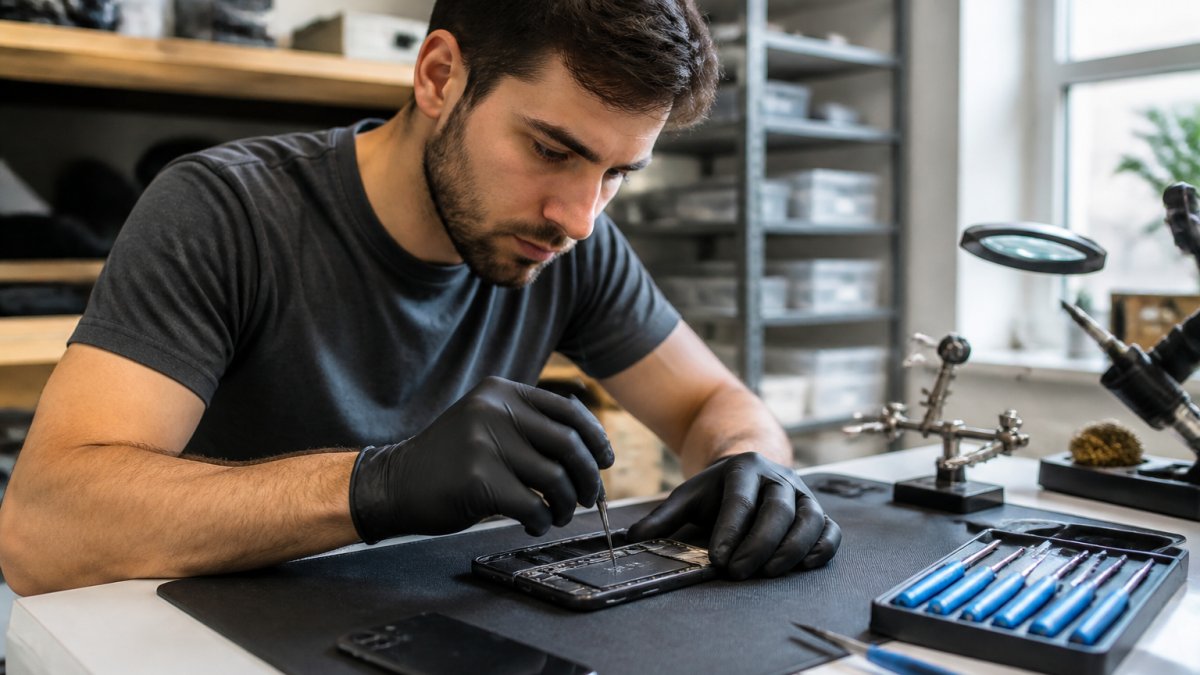
Look for a physical storefront with visible business hours. A dedicated location often signals a commitment to the local community and accountability for the work performed. When you visit, note whether the staff can clearly describe their diagnostic process, typical turnaround time, and whether they handle hardware repair and software troubleshooting in-house or send work elsewhere.
Pro Tip Ask if the shop performs a free diagnostic or if a diagnostic fee is applied toward the final repair cost. This reveals a lot about their pricing structure and honesty.
Key Questions to Ask a Computer Repair Technician
Before agreeing to any service, interview the technician as you would any professional. Ask about their experience with your specific device model and the exact issue you are facing. For example, water damage repair requires different skills than a simple component replacement, so confirm they have handled similar cases.
Use this checklist during your conversation:
What is the total estimated cost, including parts and labor?
Do you provide a written estimate before starting any work?
What is your diagnostic fee, and is it waived if I proceed with the repair?
What is the expected turnaround time for my specific issue?
Do you offer any warranty on the repair or the replacement parts?
Can you outline your data backup and privacy procedures?
These questions help you gauge service quality and professionalism. A confident technician will answer them directly without hesitation. If you get vague responses about pricing or timelines, consider that a red flag.
Computer Repair Shop Red Flags to Avoid
Certain warning signs should make you walk away immediately. A shop that refuses to provide a written estimate or pressures you into approving work before explaining the issue is not operating with your best interests in mind. Similarly, be wary of any business that cannot clearly state its warranty terms on both parts and labor.
Other red flags include a lack of customer reviews, an unclean or disorganized workspace, and technicians who seem dismissive of your concerns about data privacy. Trust your instincts. A professional operation will welcome your questions about device security and data backup procedures. They should also be upfront about whether they have the necessary parts in stock or if a delay is expected for ordering.
Understanding Laptop Repair Turnaround Time
Turnaround time varies depending on the complexity of the problem. Simple software troubleshooting, like virus removal or operating system issues, might be resolved within a day. Hardware repair, such as a screen replacement or keyboard fix, often takes a few days, especially if the shop needs to order specific components.
For urgent needs, ask if the shop offers remote support or on-site service options. Some issues can be diagnosed and fixed without you leaving your home or office. The table below outlines general expectations:
Repair Type | Typical Turnaround | Notes |
Software troubleshooting | 1-2 days | Often includes virus removal and OS fixes |
Screen or battery replacement | 1-3 days | Depends on parts availability |
Water damage repair | 3-7 days | Requires thorough cleaning and testing |
Logic board repair | 1-2 weeks | Complex, often sent to specialist |
A reliable shop will give you a realistic timeframe upfront. Be cautious of any business that promises a same-day fix for complex issues, as rushed work can lead to recurring problems or damage to other components.
Local Shop vs. Big-Box Store: Pros and Cons
Choosing between a local business and a big-box retailer involves weighing convenience against personalized service. National chains often have standardized pricing and may offer extended warranties, but you might deal with a longer wait for parts or a less experienced technician.
A local shop, on the other hand, often provides faster turnaround time and more flexible customer support. Your device is less likely to be shipped to a central repair facility, which reduces the risk of loss or damage in transit. Many local businesses also build their reputation on repeat customers, so they are more invested in doing the job correctly the first time. The trade-off is that a smaller shop might not have the same inventory of parts as a large retailer, so confirm they can source what you need.
Protecting Your Data Before You Hand Over Your Device
Data privacy is a top concern when your personal files are on the line. Most guides tell you to 'back up your data,' but few provide a practical, pre-repair security checklist. This section claims that gap by giving you a concrete, sequential process to follow before you hand over your device.
Your Pre-Repair Security Checklist
Follow these steps in order to minimize your exposure:
Perform a Full Backup: Back up your entire system to an external drive or a reputable cloud service. For Windows, use File History; for macOS, use Time Machine (support.microsoft.com). This is your safety net against data loss during the repair.
Remove or Encrypt Sensitive Files: If you cannot back up due to a hardware failure, or if you have highly sensitive documents (tax returns, legal files, medical records), remove them from the device entirely. If removal isn't possible, use built-in encryption tools like BitLocker (Windows) or FileVault (macOS) to protect them (support.microsoft.com).
Sign Out of All Accounts: Log out of your email, banking, social media, and any other online accounts. This prevents unauthorized access to your digital life while your device is in someone else's hands.
Disable Automatic Login: If your computer is set to log in automatically, change this setting so a password is required on startup. This is a simple but critical step.
Document Your Device's Condition: Take photos of your device, noting any existing scratches, dents, or other cosmetic issues. This provides a baseline and prevents disputes about new damage.
Clear Browser Data (Optional): For an added layer of privacy, clear your browser's cache, cookies, and history. This removes saved passwords and browsing activity that a technician doesn't need to see.
Questions to Ask the Shop About Data Security
Beyond your own preparation, a trustworthy shop should have a clear process for handling your storage drive. Ask these specific questions:
"Do you use a separate, secure test drive for diagnostics, leaving my original drive untouched?"
"Is my original drive kept with my device at all times, or is it removed and stored elsewhere?"
"What is your written policy on data confidentiality and disposal?"
"Do you sign a Non-Disclosure Agreement (NDA) for sensitive data?"
Watch Out If a shop cannot clearly answer these questions or dismisses your concerns, consider that a major red flag. Your data is your most valuable asset on that device.
By following this checklist and asking these pointed questions, you are not just protecting your personal information; you are also filtering out shops that do not take data security seriously. This proactive approach is the hallmark of a professional repair experience.
Conclusion: Your Checklist for Choosing a Repair Shop
Choosing the right repair shop comes down to preparation. You need a partner who is transparent about costs, clear on timelines, and respectful of your data. The best way to avoid a bad experience is to ask pointed questions and trust your read on the technician’s expertise.
The Post-Repair Verification Checklist
Your responsibility doesn't end when you pick up your device. A thorough post-repair verification ensures the job was done correctly and your data is safe. Most guides stop at the point of handing over your device, but this unique checklist helps you confirm the repair was a success before you leave the shop.
Test Core Functionality: Before leaving the store, power on the device and test the specific issue that was repaired. If it was a screen replacement, check for dead pixels and uniform brightness. If it was a keyboard fix, type every key to ensure it registers.
Verify System Health: Run a quick system check. On Windows, open Task Manager (Ctrl+Shift+Esc) to see if the CPU and memory usage look normal (support.microsoft.com). On macOS, open Activity Monitor from Utilities. High usage with no open apps could indicate a lingering issue.
Check Your Files: Navigate to your user folder and spot-check that your documents, photos, and other critical files are intact and accessible.
Confirm No New Software: Review your list of installed programs. On Windows, go to Settings > Apps; on macOS, check the Applications folder. If you see any software you didn't install, ask the technician to explain its purpose immediately.
Review the Invoice: Ensure the final bill matches the written estimate you approved. Question any unexpected charges for parts, labor, or 'shop fees' on the spot.
Ask About the Warranty: Get the warranty terms in writing. Confirm what is covered (parts, labor, or both) and the duration of the coverage.
Pro Tip If the issue reappears within the warranty period, return to the shop immediately. A reputable business will stand behind their work and correct the problem without additional cost.
At PHONEPROBS, we handle repairs for phones, consoles, computers, and laptops with a focus on quick quotes and clear communication. Whether you are dealing with water damage or unwanted software, our team is ready to help. Stop by for a professional quote and let us get your device back in working order.
Frequently Asked Questions
Is it safe to take my computer to a repair shop?
Yes, it can be safe if you pick a reputable local business. Before handing over your device, back up your data and remove any personal files you don't want a technician to see. Ask about their data privacy policy and whether their service agreement covers data handling. A trustworthy shop will be transparent about their process and happy to answer your questions about device security.
How much should a PC repair cost?
Costs vary based on the problem and the parts needed. A simple software troubleshooting session might be a flat fee, while a hardware repair like a screen replacement will cost more due to the component. Always get a written estimate before authorizing work. The estimate should break down parts and labor separately, so you know exactly what you're paying for before the technician starts.
What questions should I ask before leaving my laptop for repair?
Ask about the diagnostic fee, the expected laptop repair turnaround time, and whether that fee is waived if you approve the repair. Confirm if they use new or used parts and ask about their warranty terms on both parts and labor. Also ask how they protect your data and if they provide a detailed written estimate before any work begins.
How can I tell if a computer repair shop is honest?
Look for transparency and clear communication. An honest shop will give you a written estimate, explain your options without pressure, and answer questions about their experience. They won't quote a price over the phone without seeing the device, and they will call you if they find additional issues before proceeding with unapproved work. Checking customer reviews and asking about their warranty policy are also good ways to gauge their reputation.
BOOK YOUR REPAIR with PHONEPROBS for reliable, local tech support that respects your time and your data.
BOOK YOUR REPAIR

Comments