

Phone Screen Flickers After Water: What to Do

Table of Contents
What Happens When Water Reaches Your Phone's Display
Signs of Water Damage in Phone: Recognize the Warning Signals
Immediate Steps After Water Exposure
Power off and disconnect
Remove the SIM card and battery (if possible)
Avoid charging immediately
How to Dry Out a Phone Properly
Passive drying with silica gel
The rice myth and why it doesn't work
Air circulation and time
Diagnosing Software vs. Hardware Damage
Testing in recovery mode
Checking for liquid contact indicators
Troubleshooting Screen Flickering After Water Exposure
Adjust display brightness and settings
Identify backlight failure vs. driver issues
Professional Water Damage Repair Cost and Your Options
When DIY Drying Isn't Enough: Data Recovery and Repair
Frequently Asked Questions
Last Updated: September 29, 2026
What Happens When Water Reaches Your Phone's Display
When water enters your phone and causes your phone screen flickers water damage, it doesn't just sit on the surface. It seeps into the display assembly, the logic board, and connector pins. This moisture creates two main problems: immediate short circuits and delayed corrosion.
Your display relies on precise electrical connections. Water disrupts these connections instantly. The result is flickering, dimming, or a completely black screen. But here's what most people don't realize: the damage often gets worse over time, not better. Corrosion spreads through internal components even after the phone dries.
The liquid contact indicator inside your device changes color when wet. This small sticker serves as proof of water damage to manufacturers and repair shops. Understanding what happens inside helps you make smarter decisions about whether to attempt DIY drying or seek professional help.
Watch Out Never charge a wet phone. Electrical current flowing through moisture causes short circuits that can permanently damage the logic board and display driver circuits. Wait until the device is completely dry, typically 48-72 hours minimum.
Signs of Water Damage in Phone: Recognize the Warning Signals
Water damage shows itself in predictable ways. Recognizing these signs early lets you act before permanent hardware failure occurs.
Visual indicators of water damage include:
Screen flickering or flashing on and off
Display showing colors that look wrong or washed out
Brightness that won't adjust, even when you change settings
Black spots or lines appearing on the screen
Condensation visible under the screen glass
Other signs of moisture ingress:
Speaker or microphone producing distorted sound
Phone getting hot during normal use
Battery draining faster than usual
Device freezing or restarting randomly
Buttons feeling sticky or unresponsive
Check the liquid contact indicator if you can access it. Most phones have a small white or silver sticker inside the battery compartment or SIM card slot. If it's red or pink, water has definitely reached internal components. A white indicator doesn't guarantee the phone is dry, it only means the specific sensor hasn't detected liquid yet.
Pro Tip Look for moisture around the camera lens, speaker grille, or charging port. These are common entry points for water. If you see condensation in these areas, the phone definitely needs drying time before you attempt any repairs or troubleshooting.
Immediate Steps After Water Exposure
The first hour after water exposure is critical. Your actions now determine whether the phone survives or becomes a permanent casualty.
Power off and disconnect
Turn off the phone immediately. Don't wait to see if it still works. Active electrical current flowing through wet circuits causes damage that can't be reversed.
Unplug any charging cables, headphones, or connected devices. Remove any protective case or screen protector. These trap moisture against the phone's surface and slow evaporation.
Power down completely by holding the power button. If the phone won't respond, force a shutdown by holding the power and volume buttons together for 10-15 seconds.
Remove the SIM card and battery (if possible)
Open the SIM card tray using the ejector tool (usually a small pin). Remove the SIM card and dry it with a soft cloth. Reinsert the SIM card once the phone is completely dry.
If your phone has a removable battery, take it out immediately. This stops electrical current from flowing through the device. Most modern phones don't have removable batteries, so skip this step if you can't access the battery without tools.
Avoid charging immediately
Resist the urge to plug in the phone to see if it still works. Charging a wet phone accelerates corrosion and can cause permanent logic board damage.
Don't attempt to power on the phone for at least 48 hours. Every time you turn it on, you risk short-circuiting internal components. Patience now prevents expensive repairs later.

How to Dry Out a Phone Properly
Drying a phone after water exposure requires patience and the right approach. Rushing the process or using the wrong method can cause more damage than the water itself.
Passive drying with silica gel
Silica gel absorbs moisture without generating heat that damages internal components. Place the powered-off phone in a sealed container filled with silica gel packets. Leave it for 48-72 hours.
You can find silica gel at pharmacies, electronics stores, or online.
The rice myth and why it doesn't work
People recommend uncooked rice for phone drying. Rice does absorb some moisture, but it's far less effective than silica gel. Rice also leaves starch particles inside your phone, which can cause problems later.
Air circulation and time
Never use a hair dryer, heat gun, or oven to dry a phone. Heat damages the display, battery, and solder joints on the logic board. The damage from heat often exceeds the damage from moisture.
Key Takeaway The combination of silica gel plus time produces the best results. Silica gel removes moisture efficiently while room-temperature air circulation prevents heat damage. This approach gives your phone the best chance of survival.
Diagnosing Software vs. Hardware Damage
Not all phone problems after water exposure are hardware failures. Sometimes the issue is software-related and fixable. Determining which type of damage you're dealing with guides your next steps.
Testing in recovery mode
After 72 hours of drying, you can attempt to power on the phone. If it turns on, look for signs of life: does the screen light up, even if it flickers? Do you hear the startup sound?
Checking for liquid contact indicators
Open the SIM card tray and look for the liquid contact indicator sticker. This small white or silver square changes color when exposed to moisture. If it's red or pink, water definitely reached internal components.
Watch Out If the liquid contact indicator is red, most manufacturers will void your warranty. This doesn't mean the phone can't be repaired, it just means you'll pay for repairs out of pocket. PhoneProbs can assess water damage and provide repair quotes regardless of warranty status.
Troubleshooting Screen Flickering After Water Exposure
When your phone screen flickers water damage occurs, it has several possible causes. Some are fixable with software adjustments. Others require hardware replacement.
Adjust display brightness and settings
If your phone powers on but the screen flickers, try adjusting the brightness. Go to Settings > Display and lower the brightness to the minimum level. Sometimes flickering is less noticeable at lower brightness.
Identify backlight failure vs. driver issues
If the screen flickers but you can still see a faint image, the backlight is likely functioning. The problem is probably the display driver, the circuit that controls the screen. This is a software or firmware issue that might be fixable.
Problem | Symptom | Likely Cause | Next Step |
Display driver issue | Screen flickers but image visible | Software/firmware problem | Try recovery mode or professional diagnostics |
Backlight failure | Screen completely black or very dim | Hardware failure | Display assembly replacement needed |
Oxidation on connectors | Screen flickers intermittently | Corrosion on display connector pins | Professional cleaning or replacement |
Moisture under screen | Condensation visible | Liquid still inside | More drying time or professional service |
Professional Water Damage Repair Cost and Your Options
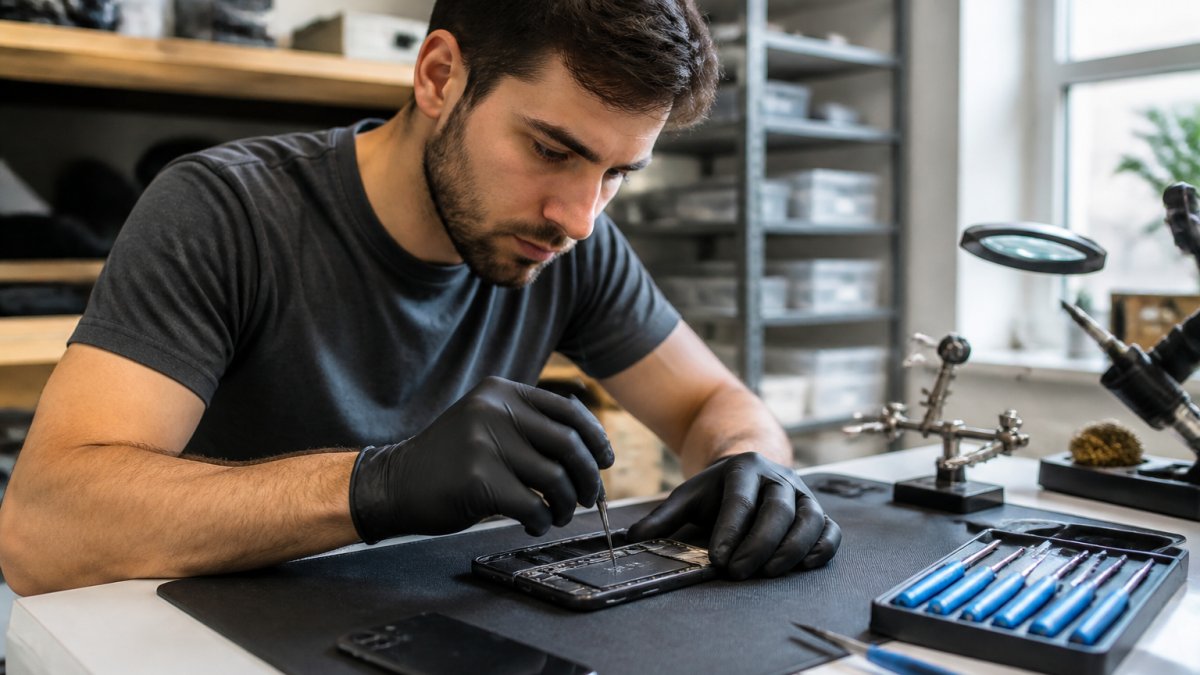
Sometimes DIY drying isn't enough. When hardware damage occurs, professional repair becomes necessary. Understanding your options helps you make the right choice for your situation.
The cost depends on what's damaged.
Best For Professional repair is your best option if the phone powers on but has display issues, or if you need to recover data before deciding whether to repair or replace the device.
When DIY Drying Isn't Enough: Data Recovery and Repair
If your phone doesn't power on after 72 hours of drying, or if the screen damage is severe, professional intervention is necessary. At this point, your goal shifts from saving the phone to saving your data.
Frequently Asked Questions
Can a flickering phone screen from water damage be fixed?
Yes, often. If the flickering is caused by moisture still inside the device, drying it properly with silica gel and time can resolve the issue. However, if water has caused corrosion to the display driver or backlight components, the screen assembly may need professional replacement. The key is acting quickly after water exposure to prevent oxidation of internal components. Professional repair technicians can diagnose whether the damage is reversible or requires hardware replacement.
What are the signs of water damage in phone components?
Look for a red or pink liquid contact indicator (usually found under the SIM tray or battery cover). Other signs include corrosion on connector pins, discoloration inside the device, green or white oxidation on the logic board, and persistent flickering or display issues after drying. Water damage can also cause touch sensitivity problems, random shutdowns, or inability to charge. If you notice any of these signs, stop using the device and seek professional assessment to prevent further electrical damage.
Is it safe to charge a phone with water damage?
No. Charging a water-damaged phone creates a serious risk of short circuit, which can damage the logic board, battery, or display components further. Moisture trapped inside the device can conduct electrical current unexpectedly, potentially causing permanent hardware failure or battery swelling. Always wait until the device has been completely dried and professionally inspected before attempting to charge. If you need your phone working urgently, professional water damage repair is safer than risking additional damage.
How long does it take for water damage to show on a phone?
Some signs appear immediately, like screen flickering or touch unresponsiveness if water reached the display or digitizer. Other damage takes hours or days to surface as corrosion progresses on internal components and connector pins oxidize. This is why drying a phone quickly matters: the longer moisture sits inside, the more oxidation occurs. Even if your phone seems fine after a few hours, internal corrosion may be developing. Professional inspection within 24-48 hours of water exposure gives you the best chance of catching damage early.
BOOK YOUR REPAIR

Comments