

Reliable Computer Diagnostics vs Manual Troubleshooting

Table of Contents
How Reliable Computer Diagnostics and Manual Troubleshooting CompareDiagnostics: Automated Testing and Data-Driven ResultsManual Troubleshooting: Trial and Error with Human Insight
Diagnostics: Automated Testing and Data-Driven Results
Manual Troubleshooting: Trial and Error with Human Insight
Common Computer Hardware Failure Symptoms That Demand a DiagnosticThe symptom-to-diagnostic decision treeSymptoms that point straight to a diagnosticSymptoms that do NOT need a diagnostic yet
The symptom-to-diagnostic decision tree
Symptoms that point straight to a diagnostic
Symptoms that do NOT need a diagnostic yet
Computer Diagnostic Software Tools: From Memtest86 to PC-DoctorReading a passing result correctlySecurity and privacy risks of diagnostic tools
Reading a passing result correctly
Security and privacy risks of diagnostic tools
How Long Does a Computer Diagnostic Take?
The Hidden Risks: False Positives, Privacy, and Cost Trade-Offs
When to Stop Troubleshooting and Book a Professional Diagnostic
Frequently Asked Questions
Last Updated: September 12, 2026
How Reliable Computer Diagnostics and Manual Troubleshooting Compare
Reliable computer diagnostics vs manual troubleshooting comes down to a simple trade-off: automated tools deliver speed and consistency, while manual troubleshooting delivers context and judgment. At PHONEPROBS, we see both approaches every week, and the honest answer is that neither wins outright. Computer diagnostics is the practice of using software to test hardware components, read system logs, and surface error codes automatically. Manual troubleshooting is the older craft of isolating a fault by hand, one variable at a time.

The difference matters because the two methods fail in opposite directions.
Diagnostics: Automated Testing and Data-Driven Results
Automated diagnostic software runs a scripted battery of tests against your CPU, GPU, RAM, and storage, then produces a diagnostic report you can act on. A memory tool like Memtest86 boots outside the operating system and hammers every RAM module with pattern tests, logging any address that returns the wrong value (memtest86.com). That is fault isolation at scale, and no human can match its patience.
What it buys you is repeatability. The same test run twice gives the same result, so you can compare before and after a repair. What it costs you is interpretation: a failed test tells you something is wrong, not why.
Manual Troubleshooting: Trial and Error with Human Insight
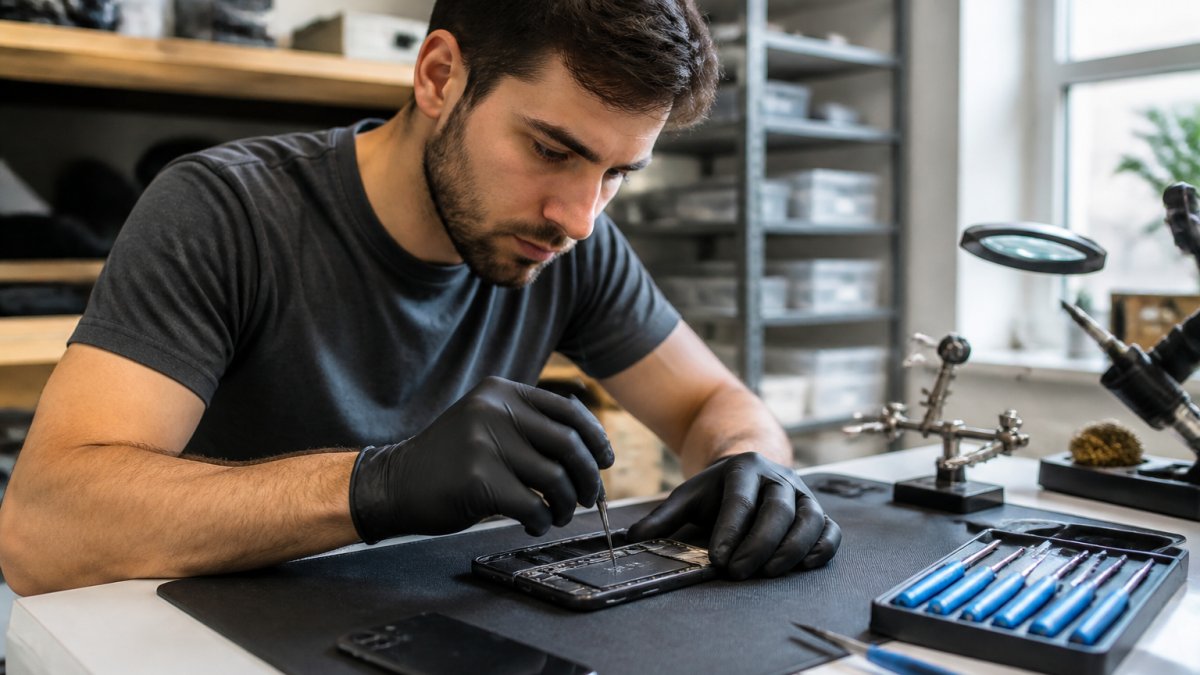
Manual troubleshooting is a methodology built on educated guesses and elimination. You swap a known-good power supply, reseat the RAM, boot from a different disk, and watch what changes. It is slower, but it catches things software cannot see: a loose connector, a swollen capacitor, a fan choked with dust.
A common mistake is treating manual troubleshooting as obsolete. It is not. Diagnostic utilities lean on hardware abstraction layers and firmware reporting, and when a component lies about its own health, only hands-on testing exposes it.
Common Computer Hardware Failure Symptoms That Demand a Diagnostic
Most guides hand you a symptom list and stop there. The harder question is not what is failing, it is when to stop troubleshooting by hand and switch to a structured diagnostic. That switch point is where technicians either save an hour or waste a day.
The symptom-to-diagnostic decision tree
Work through these gates in order. The first gate you fail tells you to stop manual work and run a diagnostic.
Is the fault reproducible on demand? If yes, you can still troubleshoot manually because you can test one variable at a time. If no, stop, intermittent faults punish trial-and-error and reward long-run stress testing.
Have you changed more than two variables without a result? Once you have swapped a PSU, reseated RAM, and booted from a different disk with no change, your mental model is stale. A diagnostic report resets it.
Do the system logs show a pattern? Repeated stop codes, WHEA (Windows Hardware Error Architecture) events, or SMART warnings mean the machine is already telling you where to look (learn.microsoft.com). Read the log before you touch hardware.
Does the fault survive a clean boot environment? If the problem persists outside the operating system, in BIOS, in a live USB, or during POST, it is hardware. Diagnostics are the correct next step.
Is data at risk? Any sign of storage degradation moves you straight to diagnostics. Manual poking at a failing drive can finish it off.
Symptoms that point straight to a diagnostic
Random shutdowns under load, usually PSU, VRM, or thermal, and only a sustained stress test exposes them
Repeated BSOD (Blue Screen of Death) errors with different stop codes, a single code points to a driver; many codes point to memory or power
Boot failures that never reach the POST (Power-On Self-Test) screen, firmware or hardware, not software
Intermittent freezes with no pattern in the system logs
Memory dump files appearing after crashes
Thermal throttling where the machine slows under sustained work
Latency spikes in storage that benchmarks confirm
Audible clicking from a mechanical drive
Symptoms that do NOT need a diagnostic yet
Not every problem justifies a full sweep. A single application that crashes on launch, a printer that will not connect, or a browser that hangs on one site are software problems. Manual troubleshooting, safe mode, a clean profile, a driver rollback, is faster and cheaper than a hardware diagnostic. Running a two-hour RAM test on a machine with a corrupted browser profile is wasted time.
Component degradation rarely announces itself. It shows up as instability first and failure later, which is why the decision tree matters more than the symptom list.
Watch Out Continuing to run a machine with suspected memory faults can corrupt files as they are written. Back up important data before you start stress testing, not after.
Key Takeaway The rule of thumb: if you can reproduce the fault, troubleshoot manually. If you cannot, or if you have already burned two variables, diagnose. Manual work finds causes; diagnostics find components.
Computer Diagnostic Software Tools: From Memtest86 to PC-Doctor
The right diagnostic utility depends on what you suspect. Here is how the main options compare:
Tool | Cost | Best For | Trade-off |
Memtest86 | Free | RAM faults, boot-level testing | Requires technical reading of results |
OCCT | Free tier | CPU, GPU, PSU stress testing | Resource-heavy during tests |
PC-Doctor | Enterprise | Standardized shop reports | Not sold to individual consumers |
Windows Event Viewer | Included | Driver conflicts, software crashes | Steep learning curve |
CrystalDiskInfo | Free | Storage health, SMART attributes | Only reports what the drive discloses |
Memtest86 remains the standard for memory testing because it runs independently of the operating system. OCCT adds real-time monitoring and is especially good at exposing thermal throttling. PC-Doctor is the tool service centers use when they need predictive failure analysis and a consistent diagnostic report format. Windows Event Viewer costs nothing and often holds the answer, if you can read it. CrystalDiskInfo surfaces SMART attributes that a drive's own firmware reports, which is both its strength and its weakness.
Reading a passing result correctly
A clean diagnostic report is not proof of health. It is proof that the tested component behaved correctly under the tested conditions. Those are different claims, and conflating them is the most common mistake in IT support.
False negatives are the dangerous case. A marginal power supply can pass a light load test and still shut down the machine under a real GPU workload. A stick of RAM can pass one Memtest86 pass and fail on hour six. A drive with a failing controller can report clean SMART data right up until it drops off the bus.
False positives cost money. A stress test that pushes a CPU past its thermal design can flag a healthy chip as unstable. A benchmark run on a laptop with a clogged fan can report throttling that has nothing to do with the CPU itself.
A common pattern among experienced technicians: treat a fail as a strong signal and a pass as a weak one. A failure means investigate. A pass means the component survived that specific test, nothing more.
Security and privacy risks of diagnostic tools
Almost no guide covers this, and it matters. Diagnostic utilities need deep system access to do their job: kernel-level drivers, raw disk reads, firmware queries, and in some cases network telemetry. That access is exactly what makes them useful and exactly what makes them risky.
Telemetry and phone-home behavior. Some free tools send usage data, hardware IDs, or crash reports to a vendor server. On a personal machine that may be acceptable. On a work laptop holding client files or regulated data, it is a compliance problem.
Bundled installers. Free diagnostic utilities are a common vector for adware and unwanted toolbars. Download from the vendor's own site, not a third-party mirror.
Kernel drivers that outlive the tool. A diagnostic utility that installs a low-level driver may leave it behind after uninstall. On a system with secure boot or measured boot enabled, an unsigned or stale driver can cause its own boot failures.
Bootable media. Memtest86 and similar tools run outside the OS, which is safer for the host system but means the USB stick itself must be trusted. A compromised boot USB has full hardware access.
For enterprise fleets, the standard practice is to whitelist a small set of approved diagnostic tools, run them from signed boot media, and block outbound telemetry at the firewall. For a single home machine, the practical rule is simpler: use tools from vendors you can name, and read the installer before you click through it.
Pro Tip Run memory tests overnight. A single pass can miss intermittent faults that only appear after hours of sustained load, and a clean one-pass result is not proof of healthy RAM.
Key Takeaway Diagnostic tools are instruments, not verdicts. Interpret a fail as a lead and a pass as a baseline, and treat any tool that wants kernel access or network telemetry as a security decision, not just a technical one.
How Long Does a Computer Diagnostic Take?
A full computer diagnostic typically takes anywhere from 30 minutes to several hours, depending on how deep you go (PubMed). A quick health check on storage and memory might finish in half an hour. A complete sweep with a RAM stress test, GPU load test, and thermal monitoring can run overnight.
For most machines we see, a practical split looks like this:
Storage health and SMART check: 10-15 minutes
Memory test, one pass: 30-60 minutes
CPU and GPU stress test: 30-60 minutes
Full overnight memory and stability run: 8+ hours
If a shop quotes you a diagnostic in five minutes, ask what they actually tested.
The Hidden Risks: False Positives, Privacy, and Cost Trade-Offs
Diagnostic accuracy is not perfect, and pretending otherwise causes real problems. False positives flag healthy components as failing, which leads to unnecessary parts replacement. False negatives are worse: a tool reports everything clean while a marginal power supply keeps causing shutdowns. This is why benchmark results should guide a decision, never make it alone.
Privacy is the other risk most guides skip. Many free diagnostic tools request deep system access, and some phone home with usage data. On a work laptop holding client files, that is a real exposure. For enterprise fleets, cost-benefit usually favors standardized tooling; for a single home machine, a free utility plus a technician's judgment is often the smarter spend.
When to Stop Troubleshooting and Book a Professional Diagnostic
Stop troubleshooting the moment you run out of clean variables. If you have swapped parts, reseated connections, and still cannot reproduce the fault reliably, more trial and error just burns time. That is the point to hand the machine to someone with proper diagnostic equipment.
At PHONEPROBS, we handle exactly this kind of work: phones, consoles, computers, and laptops, including water damage and stubborn software issues. We offer quick repair quotes, so you know the cost before we start, and we buy, sell, trade, and lease devices if a repair stops making financial sense. If you are weighing a fix against a replacement, we can walk you through both options honestly.
Frequently Asked Questions
Are diagnostics and troubleshooting the same thing?
No. Diagnostics use automated tools to test hardware components and collect data like error codes, system logs, and benchmark results. Troubleshooting is a manual, trial-and-error process where a technician swaps parts or changes settings to isolate a fault. Diagnostics give you a data-driven starting point; troubleshooting confirms and resolves the issue. Most repair workflows combine both, but starting with diagnostics saves time and reduces guesswork.
What are the benefits of using professional diagnostic software?
Professional tools like PC-Doctor or OCCT run component stress tests on CPU, GPU, RAM, and power supply simultaneously. They catch intermittent hardware failures that manual inspection misses, generate a diagnostic report you can share with a repair shop, and support predictive maintenance by flagging component degradation early. For anyone dealing with recurring crashes or BSOD errors, this structured approach beats swapping parts one at a time.
How long does a computer diagnostic take?
A basic software scan using built-in tools like Windows Event Viewer takes 10 to 20 minutes. A full hardware diagnostic with memory testing (Memtest86) and stress tests (OCCT) typically runs 1 to 3 hours depending on how many components are tested and the size of your RAM. If a shop runs a complete diagnostic on a laptop with a failing drive and thermal issues, expect 2 to 4 hours before you get a reliable report.
When should you stop manual troubleshooting and seek professional help?
Stop when you have swapped or reseated components twice without a fix, when you see repeated BSOD errors or boot failures, or when the problem disappears and returns unpredictably. Intermittent faults are nearly impossible to catch by trial and error. A shop with dedicated diagnostic software can run a component stress test and fault isolation in one session, saving you hours of guessing and preventing further damage.
Can automated diagnostic tools identify hardware failures on their own?
They can flag failures with high accuracy when a component is actively degrading. Tools like Memtest86 detect RAM faults, and OCCT catches thermal throttling and power supply instability under load. However, no tool is perfect. False positives happen when a driver conflict mimics a hardware fault. That is why a diagnostic report should always be paired with a technician's judgment before replacing parts.
A failing machine rarely gives you a clean answer, and guessing at parts gets expensive fast. Whether it is a laptop that will not boot, a console that will not power on, or a phone acting strange after water damage, PHONEPROBS can run proper diagnostics, explain what we find, and quote the repair before we touch a screwdriver. Book your repair with PHONEPROBS and get a straight answer on what is actually wrong.
BOOK YOUR REPAIR

Comments