

Signs of a Failing Laptop Backlight: Diagnosis and Repair Guide

Last Updated: November 12, 2026
Quick Summary
Signs of a failing laptop backlight include flickering or fading screens, a pink or red tint creeping in from the edges, and a screen that slowly darkens over weeks. If the light cuts out at a certain lid angle, suspect a loose display cable rather than a dead backlight.
Shine a flashlight at a black screen: a faint image confirms a backlight fault.
If the manufacturer logo is already dim during POST, the fault is hardware.
A dim but visible image points to the backlight, not the display panel.
An external monitor showing a clean picture rules out the graphics and motherboard.
Repair if the fix is a cable or inverter; replace if the panel and backlight both fail.
Screen dark but laptop still on?
We diagnose backlight, cable, and panel faults and give you a clear quote before any repair.
Table of Contents
Early Warning Signs Your Laptop Backlight Is Failing
A laptop backlight is the light source behind your screen that makes the image visible. When it starts to fail, you rarely lose the picture all at once. You get warning signs first. Learning to read those signs is the whole game, and it's the fastest way to tell a cheap fix from an expensive one.
The screen isn't dead. The light behind it is. Here's what to watch for before the screen goes fully dark.
Flickering, Fading, and Red Tint Symptoms
The most common early clue is a screen that flickers or fades. It might pulse when you first wake the laptop. It might dim on its own, then snap back.
Watch for a pink or red tint creeping in from the edges. That tint usually points to a failing light strip, not a software glitch. A screen that gets slowly darker over weeks is another red flag. If you keep cranking brightness to see, the backlight is on its way out.
Intermittent Failures and Lid Movement
Here's one most guides miss: the failure often follows the lid. Open and close the laptop slowly and watch the screen. If the light cuts out at a certain angle, you likely have a loose display cable, not a dead backlight.
A common mistake is assuming an intermittent screen means a dying panel. Often it's just a connection that works loose with daily opening and closing. That's a much cheaper repair.
When Your Laptop Backlight Is Not Working: A Symptom Decision Tree
Start with the cheapest checks and work down. This order saves you money and time.
Screen black but laptop on? Shine a flashlight at the screen. Faint image means backlight.
Image visible and bright? Not a backlight issue. Look at software or the panel.
Flickers when you move the lid? Suspect the display cable.
Dim but still visible everywhere? Check brightness settings first.
Red tint or dark edges? Points to the light strip itself.
If the screen stays black and the flashlight shows nothing, the panel or motherboard may be the cause. Our guide on signs your laptop motherboard is failing helps you rule that out before you spend on a repair.
How to Check Laptop Backlight: The Flashlight Test and Brightness Controls
The flashlight test is the single best way to check laptop backlight health without tools. Run it in this order and record what you see at each step. The sequence matters because each result narrows the cause before you spend money.

Step 1: Confirm the laptop is actually on
Press the power button and watch for the power LED, fan spin-up, or drive activity. If the machine shows no signs of life, the problem is power, not the backlight. Charge it for 30 minutes and try again before running any display test.
Step 2: Run the flashlight test
Dim the room lights. Shine a bright flashlight at a shallow angle across the dark screen, sweeping slowly from corner to corner. Look for a faint desktop, login screen, or menu.
Faint but complete image: the panel is drawing a picture and the backlight is not lighting it. This is the classic backlight signature.
No image at all, even under the beam: the panel or the video signal path is at fault, not just the light source.
Image appears only in one area: a partial light-strip or connector fault rather than a total failure.
Step 3: Rule out brightness and software
Before touching hardware, press the brightness keys (usually Fn plus a sun icon) and check the display settings in your operating system. Confirm the screen is not set to its lowest level and that a power-saving profile has not dimmed it. On Windows, open Settings > System > Display and drag the brightness slider; on macOS, use Control Center or System Settings > Displays. A graphics driver update or a firmware/UEFI setting can also produce a dim screen, so test the display before the operating system loads (see the firmware check below).
Step 4: Test before the OS loads
Restart the laptop and watch the manufacturer logo during POST. If the logo is bright and normal but the screen dims once the OS starts, the fault is software or driver related. If the logo is already dim or dark, the fault is hardware and lives in the display, cable, or backlight circuit.
Step 5: Decide whether to go further
If brightness controls do nothing and the flashlight test shows a faint image, you have confirmed a hardware fault. At that point the remaining checks are the display cable at the hinge and, on older machines, the inverter. Anything beyond reseating an accessible connector requires opening the display assembly, which is where most home diagnostics should stop.
Watch out: shining a flashlight directly into the panel at close range for long periods can heat the surface; keep the beam moving and a few inches back.
Firmware and UEFI checks
Enter the firmware setup (usually F2, F10, or Del at boot) and look for a display or brightness setting. Some business laptops expose a panel self-test or a brightness override there. If the firmware screen is bright and the OS screen is dim, the backlight hardware is fine and the issue is in the operating system or driver stack.
Laptop Screen Dim but Still Visible: Backlight vs Display Panel Fault
A laptop screen dim but still visible almost always points to the backlight, not the panel. The panel draws the image. The backlight lights it up. If you can see the image faintly, the panel is doing its job.
A panel fault looks different. You'll see dead pixels, lines, cracks, or patches of color. The image itself is broken, not just dark.
So how do you tell them apart? Use the flashlight test. Faint but complete image means backlight. Missing or distorted image means panel. This one distinction decides whether you're looking at a light repair or a full screen assembly swap.
Testing With an External Monitor and Checking the Display Cable
Plug in an external monitor through your video output. If the external screen shows a clean picture, your graphics and motherboard are fine. The problem lives in the laptop's own display, cable, or backlight.
Next, inspect the display cable. On many laptops you can check the connector at the hinge without a full teardown. Look for a loose connection, a crimped wire, or a damaged cable. Re-seating a loose connector is sometimes all it takes.
If the cable or panel needs replacing, our guide on how to find compatible laptop screen parts walks you through matching the right part to your model.
Laptop Backlight Repair Cost and Repair vs Replace Guidance
Laptop backlight repair cost depends on what actually failed, and the spread is wide. A loose cable is a quick, low-cost fix. A failed light strip or inverter means opening the screen assembly, which takes more labor.
Modern LED-backlit laptops usually do not have a separate inverter. The light driver sits on the main board or on a small circuit inside the display assembly, which is why LED backlight faults are often handled by replacing the whole assembly rather than a single part. Older CCFL screens do use an inverter, and that part can fail on its own and is usually the cheapest of the three bands to replace.
What drives the price up or down
Access: a connector reachable at the hinge is minutes of labor; a panel buried under adhesive and bezel clips is an hour or more.
Part availability: common business models have plentiful assemblies; thin-and-light and older consumer models may not.
Bundled parts: many LED assemblies include the panel, light strip, and cable as one unit, so you pay for all three even if one failed.
Diagnosis time: intermittent faults that only appear when the lid moves take longer to confirm.
Repair or replace decision table
What Failed | Typical Fix | Repair or Replace? |
Loose display cable | Re-seat or replace cable | Repair, low cost |
Failing LED strip | Screen assembly service | Repair if the laptop is otherwise solid |
Failed inverter (older screens) | Replace inverter | Repair, usually the cheapest hardware fix |
Dead panel plus backlight | Full screen assembly | Compare to a new laptop |
How to make the call
Use three questions. First, is the laptop otherwise healthy (battery, storage, performance)? Second, is the repair in the cable or inverter band, or the full-assembly band? Third, does the repair cost exceed roughly half the price of a comparable replacement? If the machine is solid and the fix is a cable or inverter, repair. If the panel and backlight both fail on an old, slow machine, replacement usually wins.
For a full cost comparison, see our laptop screen replacement cost breakdown. If you are weighing a fix against a new machine, our laptop repair vs buying new guide lays out the math.
Book a Backlight Diagnosis at PhoneProbs
A dark screen doesn't always mean a dead laptop. Often it's a backlight, a cable, or a setting, and the difference is money in your pocket. Guessing wrong costs you a screen you didn't need.
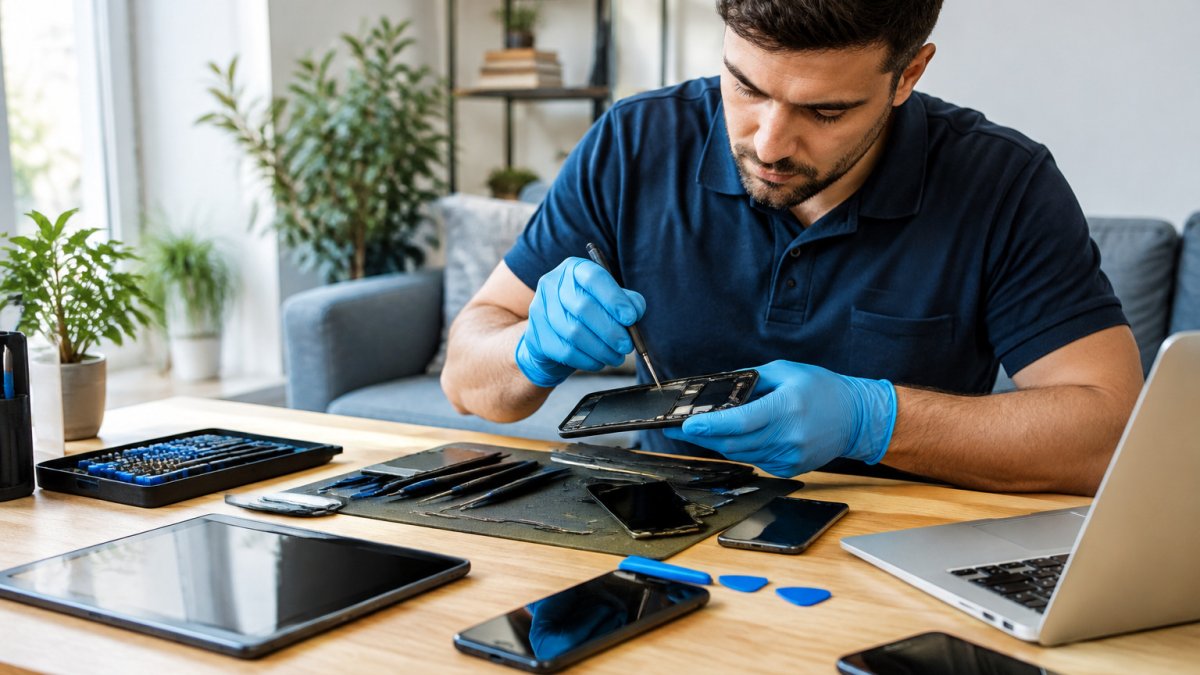
Bring your device in and we'll help you figure out what's wrong. We repair phones, consoles, computers, and laptops, and we're happy to give you a professional quote.
BOOK YOUR REPAIR and get a professional quote.
A failing backlight is one of the most misdiagnosed problems we see. The good news is that a proper diagnosis takes minutes and can save you the cost of a screen you never needed. PhoneProbs offers quick repair quotes, professional help for phones, consoles, computers, and laptops, and water damage repair when a spill is part of the story. Get started with PhoneProbs and get your screen diagnosed and back to work.
Frequently Asked Questions
How do you tell if your laptop backlight is bad?
The clearest test is the flashlight test. Power the laptop on in a dim room and shine a flashlight at an angle across the screen. If you can see a faint image of your desktop, windows, or cursor, the LCD panel is still working and the laptop backlight has likely failed. Other signs include a flickering screen, a red tint, or a display that goes dark when you move the lid.
Can a laptop screen be visible with a flashlight if the backlight has failed?
Yes. The LCD panel creates the image, and the backlight provides the illumination behind it. When the backlight or its power circuit fails, the image is still being drawn but there is no light to make it visible. A flashlight aimed at the screen acts as an external light source, so a faint but readable image confirms the panel is intact and points to a backlight fault.
How can you tell a backlight problem from a graphics or display problem?
Connect the laptop to an external monitor. If the external monitor shows a normal image, the graphics card and operating system are fine, which narrows the issue to the laptop display assembly, display cable, or backlight. If the external monitor also shows artifacts or no image, the fault is more likely in the graphics hardware or software. A flashlight test on the built-in screen adds a second confirmation.
What does laptop backlight repair cost typically involve?
Cost depends on the laptop model and whether the shop replaces the whole screen assembly or just the backlight components. Bring the laptop to PhoneProbs for a professional quote before any work begins. The technician will confirm whether the fault is the backlight, the display cable, or the panel, and explain the parts and labor involved so you can decide whether repair makes sense for your device.

Comments